
win10脚本清理垃圾教程
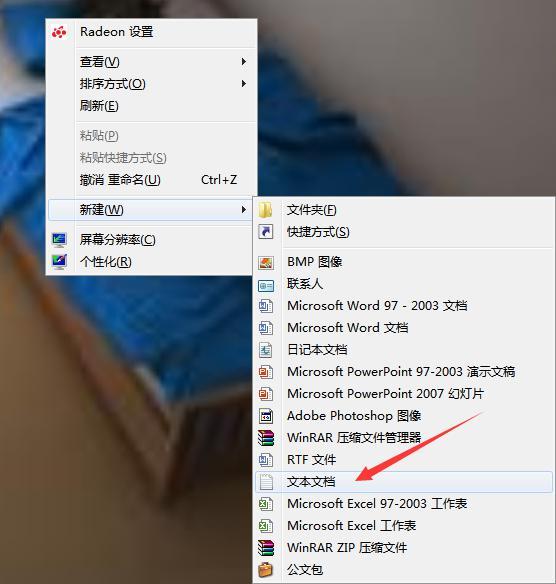
1.在电脑桌面空白处新建一个文本文档
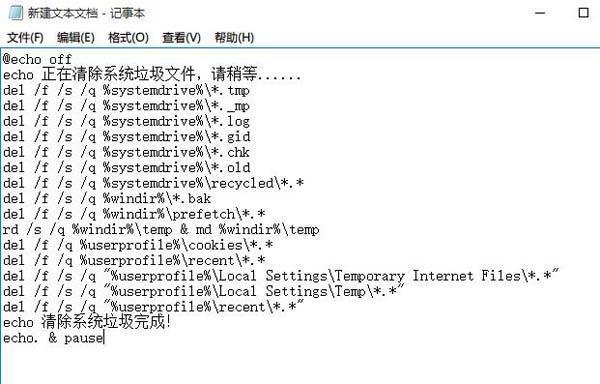
2.新建完成后,复制代码粘贴到文本文档里
@echo off
echo 正在清除系统垃圾文件,请稍等......
del /f /s /q %systemdrive%*.tmp
del /f /s /q %systemdrive%*._mp
del /f /s /q %systemdrive%*.log
del /f /s /q %systemdrive%*.gid
del /f /s /q %systemdrive%*.chk
del /f /s /q %systemdrive%*.old
del /f /s /q %systemdrive% ecycled*.*
del /f /s /q %windir%*.bak
del /f /s /q %windir%prefetch*.*
rd /s /q %windir% emp & md %windir% emp
del /f /q %userprofile%cookies*.*
del /f /q %userprofile% ecent*.*
del /f /s /q "%userprofile%Local SettingsTemporary Internet Files*.*"
del /f /s /q "%userprofile%Local SettingsTemp*.*"
del /f /s /q "%userprofile% ecent*.*"
echo 清除系统垃圾完成!
echo. & pause
3.复制完成后,点击文件,另存为,弹出另存为窗口后,保存类型改为所有文件,保存路径自定义,文件名自定义(注:文件名尾缀需要加上“.bat”)

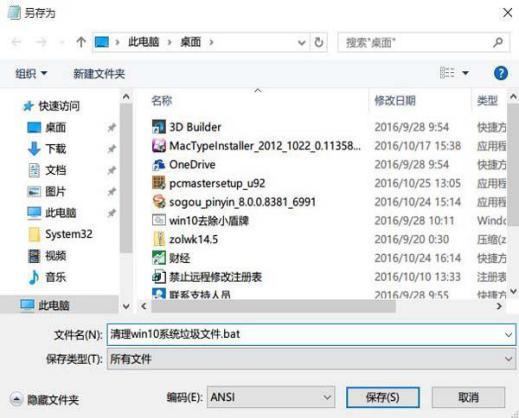
4.最后生成一个bat批处理文件,双击打开,系统便会自动清理垃圾文件了