
Win8系统卸载Windows服务的方法
时间:2016-11-19
|
文章作者:残月
Win8系统卸载Windows服务的方法。Windows服务为了不影响在同一台计算机上工作的其他用户,需要长时间运行功能时使用,那Win8系统怎么卸载Windows的服务?下面小编就为大家介绍一下Win8系统卸载Windows服务的方法。
Win8系统卸载Windows服务的方法
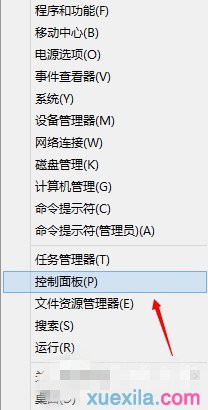
1、点击开始菜单--打开控制面板。
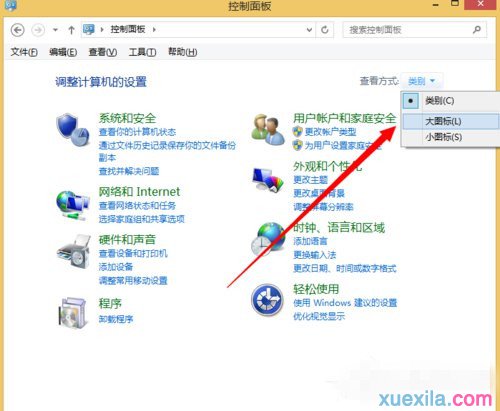
2、切换到大图标。
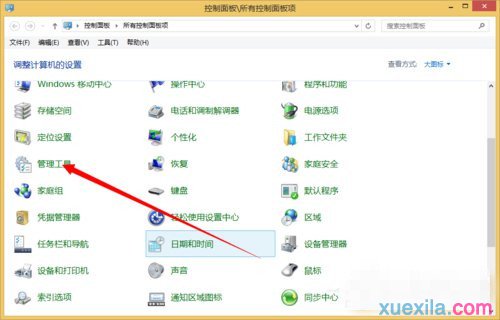
3、点击管理工具。
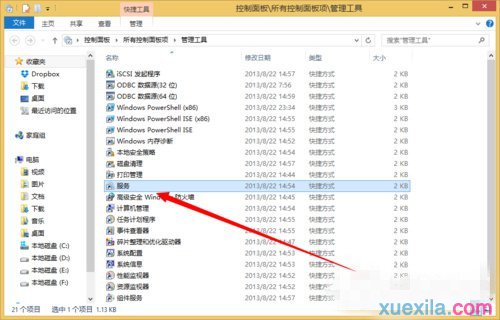
4、打开服务。
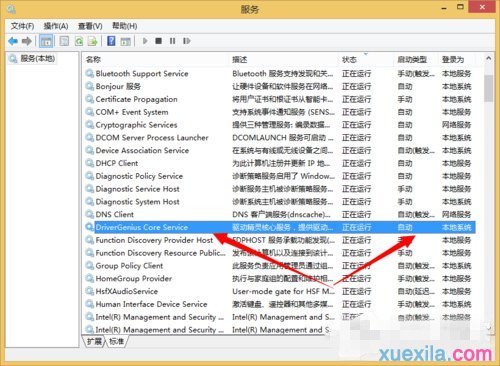
5、找到一个需要卸载的服务。
双击打开。
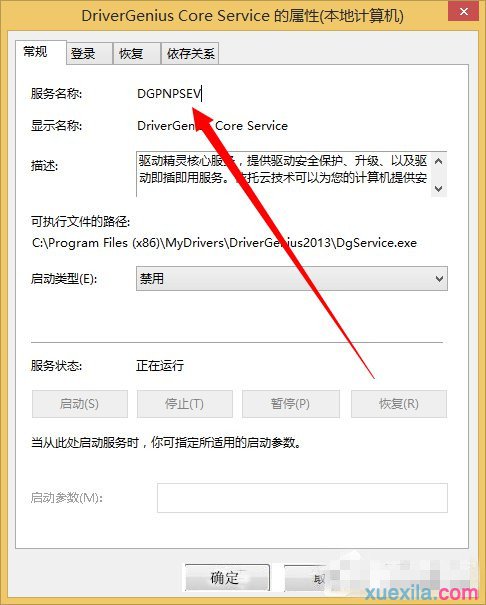
6、如何我们需要复制下来这个服务的名称。
7、来到cmd命令行。
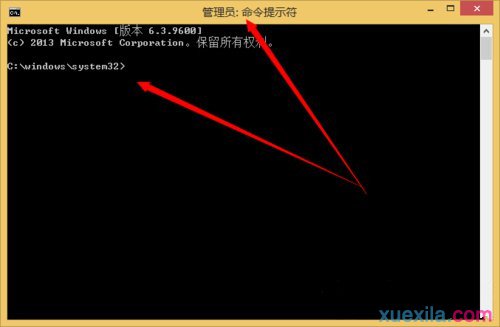
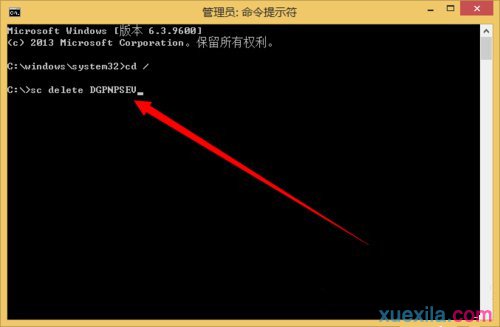
8、然后再cmd下输入 sc delete 服务名称来卸载服务。
输入完成之后回车即可。
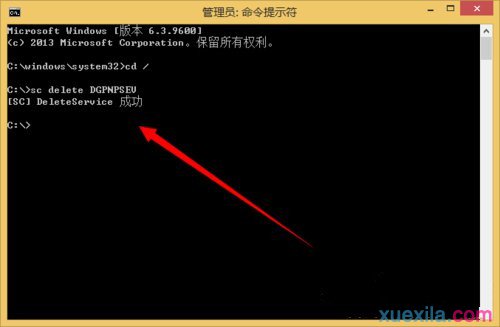
9、卸载完成。
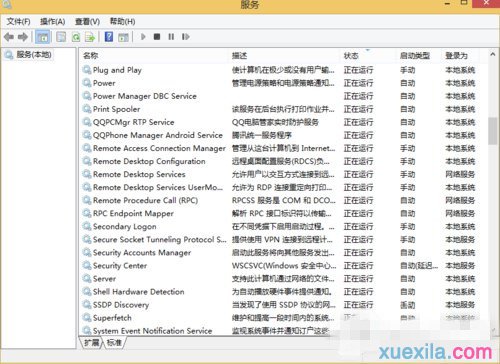
10、再次来到服务管理。
搜索一下看看我们刚刚卸载的服务还在不在。
肯定是不再了。
点击查看更多↓
系统推荐
更多+