

如何打开tif文件,教你如何打开tif文件
时间:2018-08-30
|
文章作者:huahua
tif文件是比较少见的一种格式,主要用来存储包括照片和艺术图在内的图像。最近有些用户反馈说win10系统收到一个tif文件,却不知如何打开tif文件?其实可以用Photoshop软件打开,接下来小编教你如何打开tif文件吧。
如何打开tif文件
1、在tif文件上右键,展开【打开方式】,点击【Adobe Photoshop CC2015】;
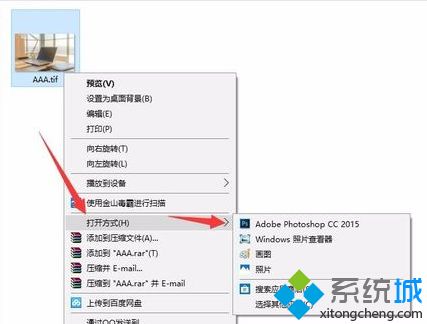
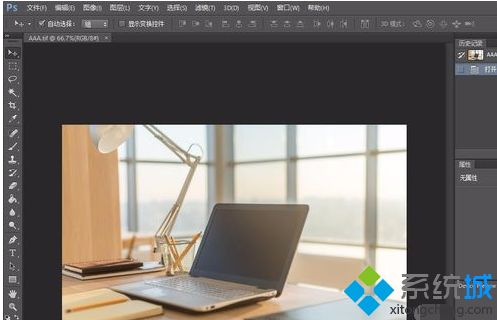
2、此tif文件即被Photoshop软件打开;
3、用Windows 照片查看器打开:在tif文件上右键,展开【打开方式】,点击【Windows 照片查看器】;#f#
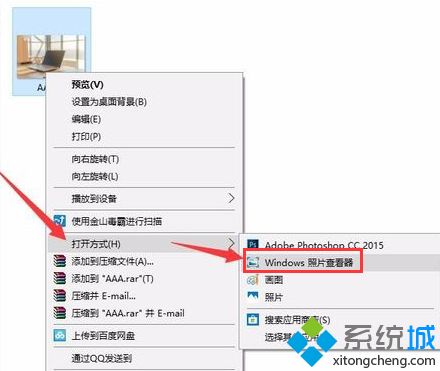
4、此tif文件即被Windows 照片查看器打开;

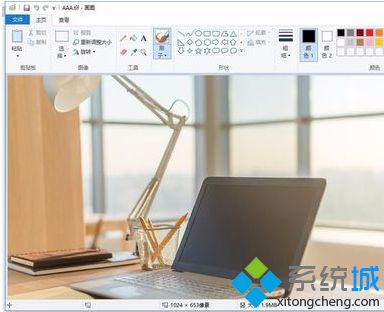
5、用Windows自带的“画图”工具打开:在tif文件上右键,展开【打开方式】,点击【画图】;
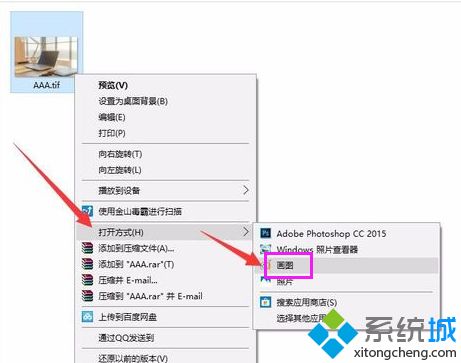
6、此tif文件即被Windows自带的“画图”工具打开;
7、用Windows自带的“照片”工具打开:在tif文件上右键,展开【打开方式】,点击【照片】;
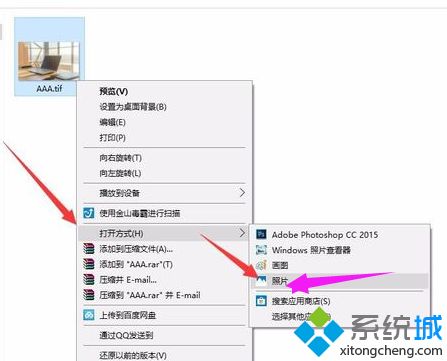
8、此tif文件即被Windows自带的“照片”工具打开;

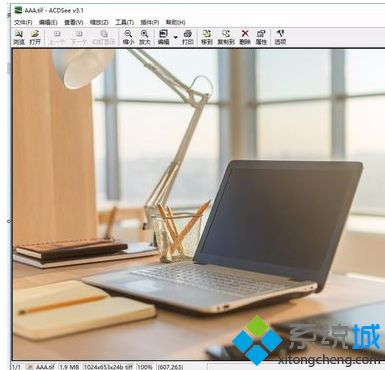
9、用ACDSee软件打开:在tif文件上右键,展开【打开方式】,点击【ACDSee】;

10、此tif文件即被ACDSee软件打开。
以上就是如何打开tif文件的介绍了,以后再看到tif文件就知道怎么打开了,希望此教程内容能够帮助到大家。
点击查看更多↓
系统推荐
更多+